How to share the running of your night
A night that depends on one person's phone has a single point of failure. Hand out three jobs - co-host, scorekeeper, front desk - each with its own limits.
Why this matters
A volunteer host ends up doing three jobs at once: the door, the rounds, and the argument on court 3. Handing one over should not mean handing over the whole event.
From the app
Setting it up
- 1
Open Event hosts
From the lobby or the host screen, open the header menu and choose Manage co-hosts. You land on Event hosts: you at the top, then everybody helping.
- Somebody who has not answered yet sits dimmed, waiting on their answer.
- Being the owner is not a role anybody can take off you.
- Any host can open this screen. Only the owner can change it.
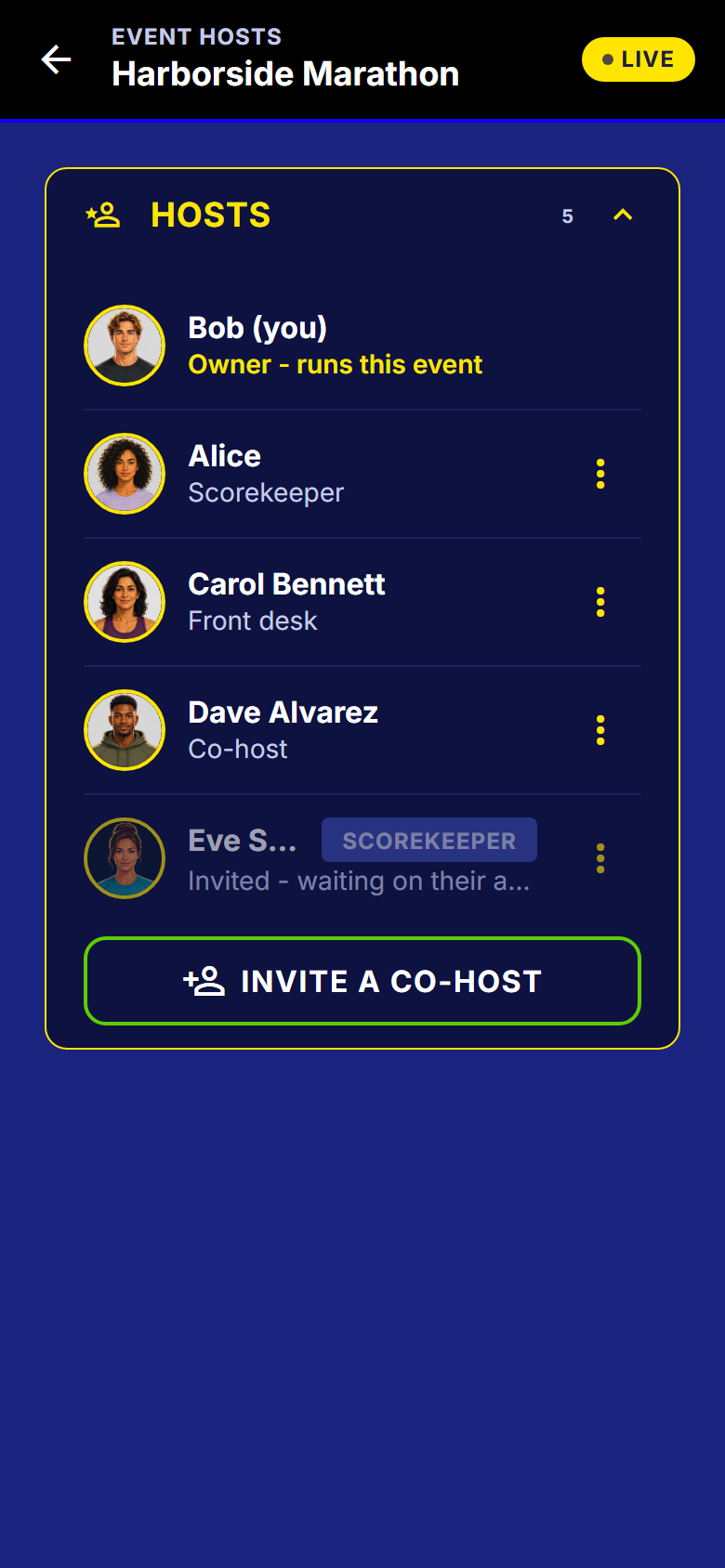
Event hosts on a live event: the owner, three active roles, and one invite still out. - 2
Pick the role, then the person
Invite a co-host opens the role picker: three roles, one plain sentence each, over the player search.
- Co-host: runs the whole event with you.
- Scorekeeper: runs rounds and settles scores.
- Front desk: admits players, handles requests, forms teams.
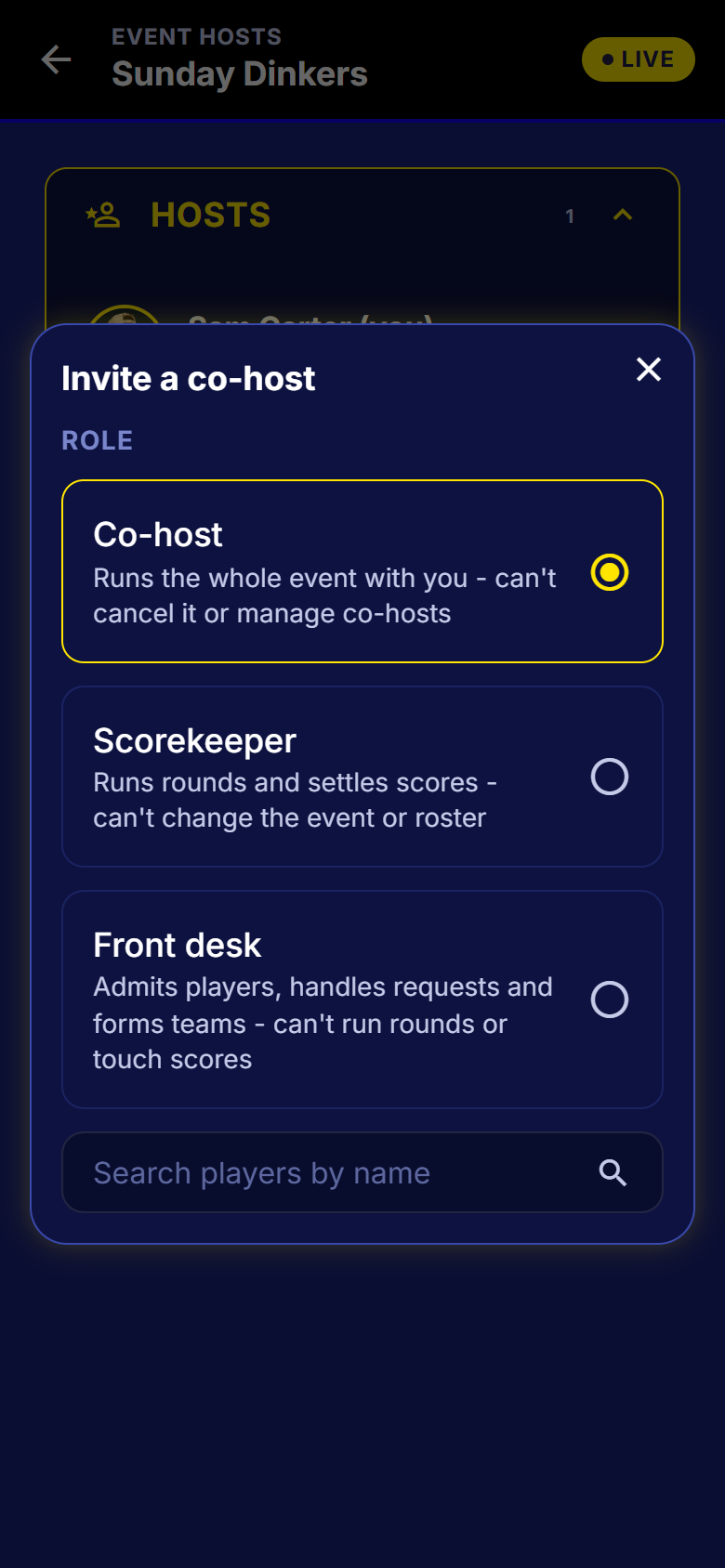
The role picker. The description under each role is the whole explanation. - 3
They work from the same screen
A co-host or scorekeeper opens the host screen you do. What changes is which parts of it their role lets them use.
- Two people run the night, so it does not hang on one phone's battery.
- Your scorekeeper settles court 3 while you deal with a late arrival.
- A host who is also playing flips between the two screens.
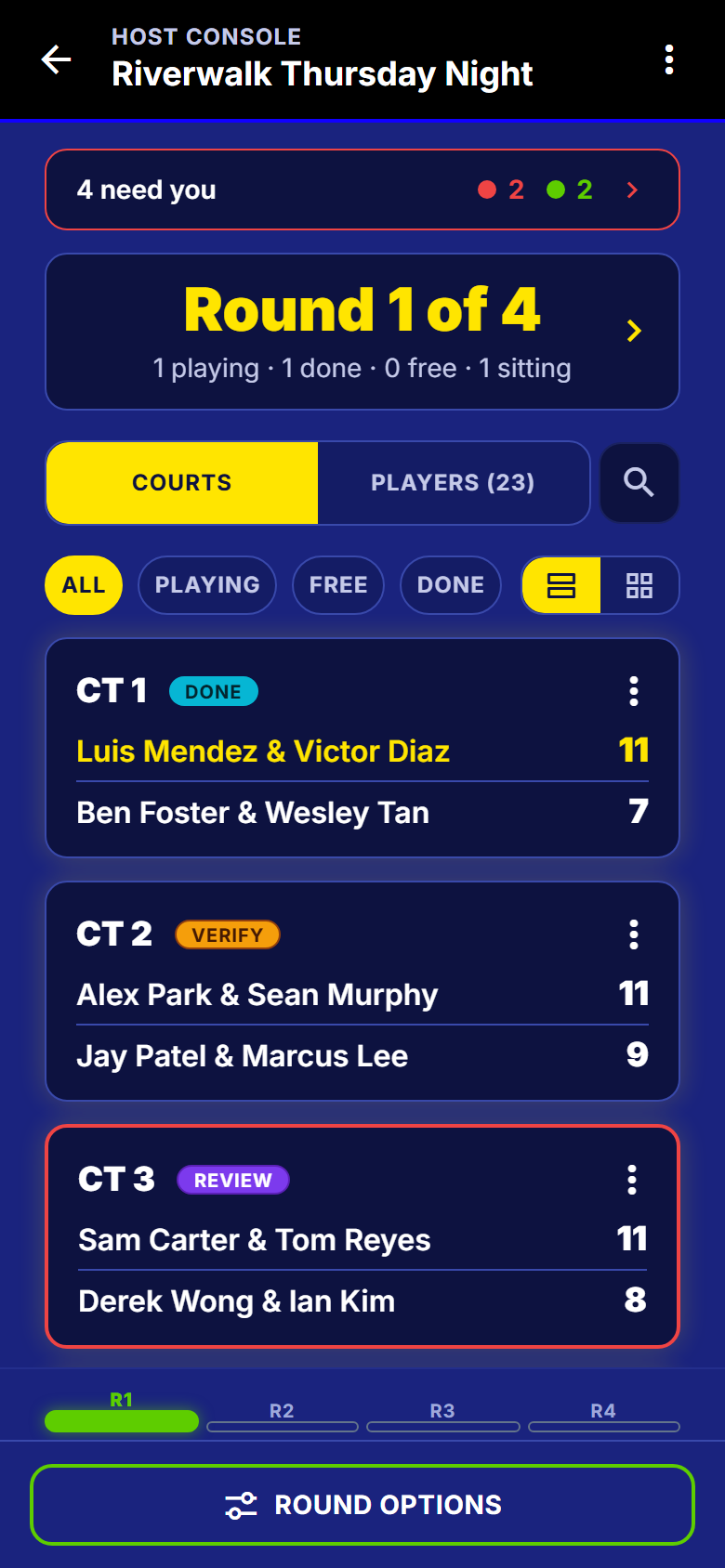
The live host screen. Every host role opens this same screen.
After the invite goes out
- 4
They accept, or they decline
An invitation is an ask, not an assignment. Until they answer you can revoke it, and nobody is quietly given control of your event.
- It arrives as a notification and sits in their in-app inbox.
- Declining is a normal answer. The row disappears.
- 5
Change, remove, or step down
Same screen. As the owner, each row offers Change role, Remove or Revoke invite. Helping somebody else? Your own row offers Step down.
- A role change takes effect immediately, mid-event included.
- Removing a helper never undoes anything they already did.
What each role can do
These are the app's own rules, not a description of them. The server enforces them, so a front desk cannot touch a score even if they find the screen.
| Role | Can | Cannot |
|---|---|---|
| Co-host | Edit the event, open and start it, admit and remove players, grant overrides, form teams, run rounds, enter and correct scores, see host-only data | Cancel the event, manage co-hosts |
| Scorekeeper | Generate the next round, force advance, submit, correct, void and reinstate scores, settle disputes | Change the event, touch the roster |
| Front desk | Approve or reject requests, add and invite players, remove and promote, grant overrides, form teams, see host-only data | Run rounds, touch scores |
Next
Running the night covers the screen your scorekeeper will be working from, and seating a guest by name covers the people side.
Get SmashDrop
Free for casual hosts. iOS and Android. No card.